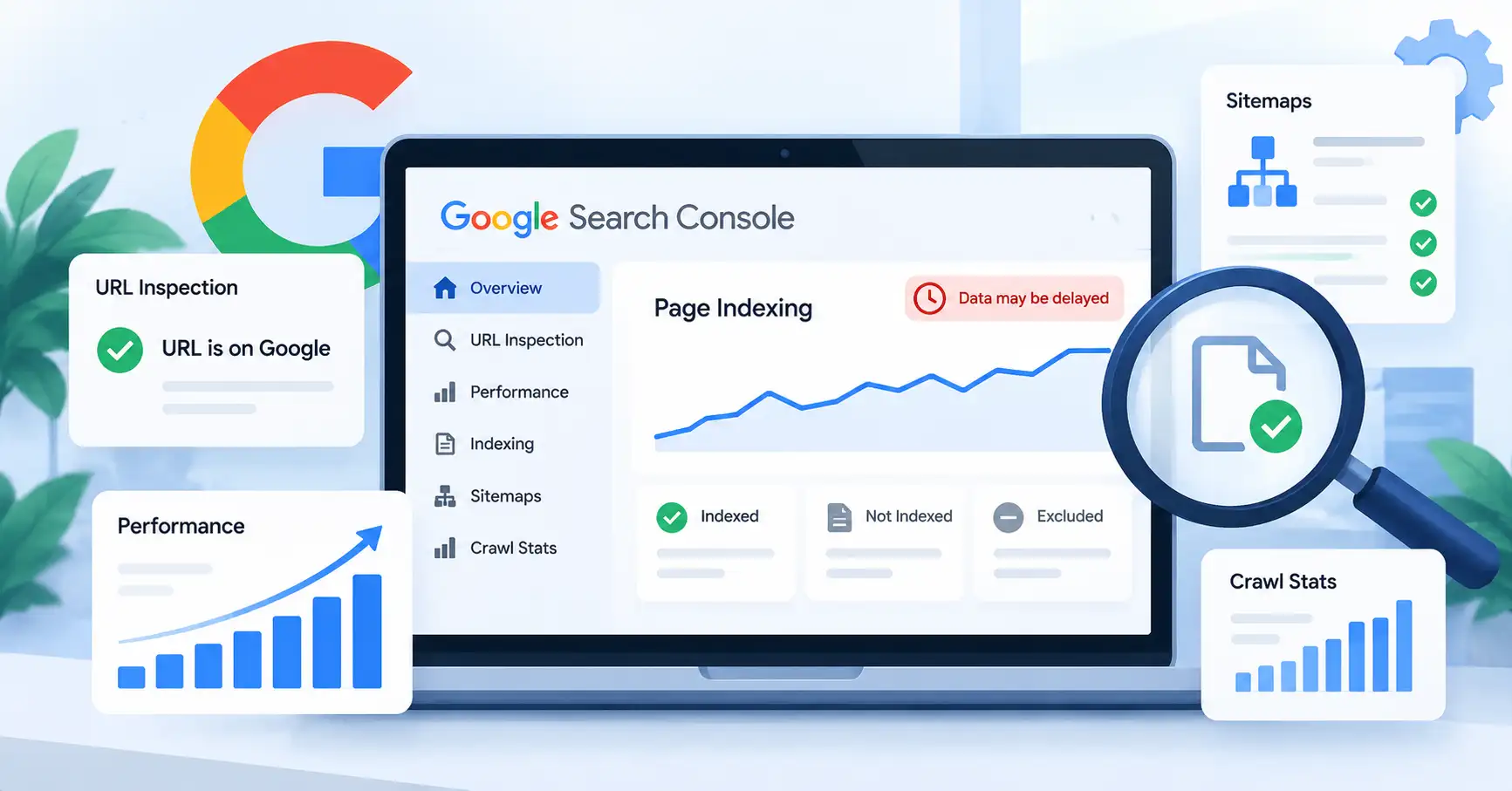
Google Search Console is essential for understanding how Google discovers, crawls, and indexes your website. But what should you do when its indexing data stops updating?
For bloggers, SEO professionals, and website owners, an outdated Page Indexing report can make it difficult to understand what’s happening behind the scenes. You might publish new content, fix technical SEO issues, or update your sitemap, yet the reported indexing numbers remain unchanged.
However, a delay in Google Search Console reporting doesn’t necessarily mean Google has stopped crawling or indexing your pages.
You can still investigate individual URLs, track search visibility, review sitemap processing, and identify potential crawling issues through other Search Console reports.
Let’s explore what these tools reveal and how to use them when indexing data falls behind.
Why Google Search Console Indexing Data Sometimes Lags
The Page Indexing report shows how Google indexes pages across your website. It also identifies URLs that haven’t been indexed and provides reasons for their exclusion.
The information isn’t updated in real time. Google collects and processes data before displaying it in Search Console, so the report might not reflect your website’s current status.
Consider a simple example. You publish a new blog post on Monday and submit its URL for indexing. By Wednesday, the Page Indexing report still shows the same number of indexed pages.
That doesn’t necessarily mean Google has rejected your article.
It’s important to distinguish between two situations:
- Reporting delay: Google may have already crawled or indexed a page, but the reporting data hasn’t caught up.
- Actual indexing problem: Google hasn’t indexed the page because of a technical issue, content quality concern, canonical selection, or another reason.
Before making changes, check the report’s last updated date. This helps you determine whether you’re working with recent information or an older snapshot.
Understanding how website indexing works also makes it easier to distinguish crawling, indexing, and appearing in search results. These are separate stages, and one doesn’t automatically guarantee the next.
What Search Console Can Still Tell You During Indexing Delays
An outdated Page Indexing report doesn’t leave you without useful information. Several other Google Search Console tools can help you investigate individual pages and understand your website’s search performance.
1. URL Inspection Tool: Check Individual Page Status
When you need to investigate a particular page, the URL Inspection tool is a good place to start.
Rather than relying entirely on website wide indexing numbers, enter an individual URL to examine the information Google has available about it.
The indexed version can show:
- Whether Google has indexed the URL.
- The last crawl date.
- Whether crawling is allowed.
- Whether indexing is permitted.
- The canonical URL selected by Google.
You can also run a live URL test to see whether Google can currently access the page.
For example: Suppose you’ve published an article about AI marketing tools, but it isn’t appearing in Google search results.
Open Search Console, enter the article URL in the inspection bar, and review its indexing status.
If the indexed version shows that the URL isn’t indexed, investigate the reported reason. If the live test succeeds, it confirms that Google can currently access the page. However, accessibility doesn’t guarantee indexing.
This distinction is important because a successful live test doesn’t mean the page has already entered Google’s index.
Read Google’s URL Inspection Tool documentation for a detailed explanation of indexed information and live testing.
2. Performance Report: Monitor Search Visibility
The Performance report shows how your website appears in Google Search. Even when indexing information is delayed, it can provide useful insights into your pages’ search visibility.
Focus on these metrics:
- Clicks: Visits your website receives from Google Search.
- Impressions: How often your pages appear in search results.
- Queries: Search terms that generate visibility.
- Pages: URLs receiving clicks and impressions.
- Average position: The average position of your search results.
For instance, imagine you’ve updated an older blog post and it continues receiving impressions and clicks. This indicates that Google is displaying the page in search results, even if the Page Indexing report hasn’t refreshed.
Keep in mind that Performance data isn’t necessarily real time either. Google marks some recent data as preliminary, and figures can change as processing continues.
Check Google’s Performance report documentation to understand data freshness and reporting limitations.
3. Sitemap Report: Check URL Discovery Signals
A sitemap helps Google discover important pages on your website, particularly when you publish new articles or update existing URLs.
The Sitemaps report provides useful information, including:
- Whether Google successfully processed your sitemap.
- When Google last read it.
- Whether any sitemap errors were detected.
- How many URLs were discovered.
Suppose your website publishes five new articles, but the indexed page count remains unchanged. Start by checking whether all five URLs appear in your submitted sitemap. Then review its processing status.
One important distinction: successful sitemap processing doesn’t mean every submitted URL will be indexed. A sitemap helps Google discover URLs, but it doesn’t guarantee their appearance in search results.
Google explains this in its sitemap documentation.
4. Crawl Stats Report: Understand Google’s Crawling Activity
The Crawl Stats report shows how Googlebot interacts with your website. It’s particularly useful when you suspect technical problems rather than a reporting delay.
You can examine:
- Total crawl requests.
- Average response time.
- Downloaded file sizes.
- Server response codes.
- Host availability.
- Crawl activity by file type and Googlebot purpose.
Consider a website that has recently migrated to a new hosting provider. After the migration, its Page Indexing report appears unchanged.
Rather than immediately assuming there’s an indexing problem, check Crawl Stats for server errors, timeouts, or unusual response times.
If Googlebot repeatedly encounters server errors, investigate your hosting configuration and server logs.
Remember that increased crawling activity doesn’t automatically translate into increased indexing. Google can crawl a page without adding it to its index.
For more information, refer to Google’s Crawl Stats report documentation.
5. Links Report: Review Internal Linking Signals
The Links report provides information about internal and external links Google has identified on your website.
Although it doesn’t report indexing status, it can help you identify whether important pages are properly connected through your site’s internal linking structure.
Pay attention to:
- Pages receiving the most internal links.
- Important articles with very few internal links.
- External websites linking to your content.
- Whether key pages are connected through relevant navigation and contextual links.
For example, a newly published article might be technically accessible but difficult to discover because no other page on your website links to it.
Adding relevant internal links from established articles improves site navigation and provides Google with additional paths to discover your content.
You can also explore iTechManthra’s SEO resources for more insights into identifying technical SEO issues.
How to Investigate Indexing Problems While Reports Are Delayed
Checking individual reports is useful, but a consistent troubleshooting process makes it easier to identify genuine problems.
Follow these six steps when Search Console indexing data appears outdated.
Step 1: Check the Page Indexing report’s last updated date.
Start by establishing how old the available data is. Avoid making decisions based entirely on outdated indexing totals.
Step 2: Inspect important URLs individually.
Use URL Inspection to check whether Google has indexed your priority pages. Review their indexing status, last crawl date, and selected canonical URL.
Step 3: Run the live URL test.
Check whether Google can currently access the page. Look for blocked resources, server errors, robots.txt restrictions, and noindex directives.
Step 4: Verify sitemap processing.
Make sure your sitemap contains the correct canonical URLs. Check for unnecessary redirects, broken pages, and URLs that shouldn’t be submitted for indexing.
Step 5: Review crawling activity and technical accessibility.
Examine Crawl Stats and, where necessary, your server logs. Investigate recurring 5xx errors, slow server responses, and unexpected crawling restrictions.
Step 6: Monitor Performance data and document changes.
Record the URLs you’ve inspected, their indexing status, last crawl dates, and any technical fixes you’ve implemented. Revisit them after Google has had time to process the changes.
Following this process helps you distinguish actual website issues from delays in Search Console reporting.
What You Should Avoid Doing During Search Console Data Delays
When reports stop updating, it’s tempting to make immediate changes. However, acting on incomplete information can create additional SEO problems.
Avoid these common mistakes:
- Repeatedly requesting indexing: Submitting the same unchanged URL multiple times won’t make Google crawl it faster.
- Deleting content unnecessarily: An outdated report alone isn’t a good reason to remove an article.
- Resubmitting sitemaps repeatedly: Check for actual sitemap errors before submitting it again.
- Changing canonical tags without investigation: Incorrect canonical changes can introduce duplicate content and indexing complications.
- Treating every excluded URL as an error: Duplicate URLs, redirected pages, and intentionally excluded pages don’t necessarily need indexing.
Google recommends requesting recrawls when important changes have been made rather than repeatedly submitting unchanged pages. Its recrawl guidance also explains that requesting a recrawl doesn’t guarantee indexing.
How to Monitor Indexing Until Search Console Data Catches Up
A straightforward monitoring process can help you avoid unnecessary troubleshooting and make more informed SEO decisions.
Consider maintaining a spreadsheet with the following information:
| Tracking item | What to record |
| Page URL | Published URL |
| Publication date | When the page went live |
| URL Inspection status | Indexed or not indexed |
| Last crawl date | Google’s latest recorded crawl |
| Canonical URL | Google’s selected canonical |
| Technical issues | Identified errors |
| Follow up date | When to inspect again |
If you publish content frequently, prioritize important landing pages, new articles, and recently updated content.
There’s no need to inspect every URL daily. Concentrate on pages that contribute most to your organic traffic and business goals.
Over time, these records can help you identify whether an indexing issue affects individual pages or a larger section of your website.
FAQ’s
No. A reporting delay doesn’t necessarily mean Google has stopped crawling or indexing your website. Use URL Inspection to investigate individual pages and review the available indexing information.
Use Google’s URL Inspection tool. Enter the page URL to check its indexed status. You can also run a live test to see whether Google can currently access the page.
No. Requesting indexing asks Google to consider crawling the URL. Google independently decides whether and when a page should be indexed.
Not necessarily. First, check whether Google has successfully processed your sitemap and whether it contains the correct URLs. Resubmitting an unchanged sitemap won’t automatically resolve a reporting delay.
Conclusion
Delays in Google Search Console indexing reports can complicate SEO monitoring, particularly when you’re publishing content regularly or managing multiple websites.
But an outdated Page Indexing report doesn’t mean you have no way to understand what’s happening.
URL Inspection helps investigate individual pages, Performance reports reveal search visibility, Sitemaps provide information about URL discovery, and Crawl Stats help identify technical problems.
What matters is understanding what each report actually measures. Don’t mistake a reporting delay for an indexing failure or make unnecessary website changes based on incomplete information.
Use the available evidence, keep records of important URLs, and monitor changes over time.

Kumar Swamy is the CEO of Itech Manthra Pvt Ltd and a dedicated Article Writer and SEO Specialist. With a wealth of experience in crafting high-quality content, he focuses on technology, business, and current events, ensuring that readers receive timely and relevant insights.
As a technical SEO expert, Kumar Swamy employs effective strategies to optimize websites for search engines, boosting visibility and performance. Passionate about sharing knowledge, he aims to empower audiences with informative and engaging articles.
Connect with Kumar Swamy to explore the evolving landscape of content creation!